> ## Documentation Index
> Fetch the complete documentation index at: https://mainwp-docs-review-bulk-settings-manager-extension.mintlify.site/llms.txt
> Use this file to discover all available pages before exploring further.
# MainWP Browser Extensions
> Browser extensions for Chrome and Firefox to track updates and manage WordPress sites directly from your browser toolbar.
MainWP browser extensions for Chrome and Firefox help you track available updates and manage your WordPress sites directly from your browser toolbar.
## What You'll Learn
* How to install the browser extension
* How to connect it to your Dashboard
* Troubleshooting common issues
## Prerequisites
* MainWP Dashboard on a web host (local installations not supported)
* Permalinks set to anything except "Plain"
* REST API access enabled
The browser extension requires your MainWP Dashboard to be hosted on a web server. Locally hosted Dashboards are not compatible because REST API requests cannot reach local installations.
***
## Features
* Track WordPress core, plugin, theme, and translation updates
* Automatically fetch update counts for all child sites
* Configure update check intervals
* Manually fetch update counts
* Track changes made outside your MainWP Dashboard
* Quick links to Dashboard pages for taking action
***
## Installation
### Chrome
1. Visit the [Chrome Web Store extension page](https://chrome.google.com/webstore/detail/mainwp-browser-extension/kjlehednpnfgplekjminjpocdechbnge)
2. Click **Add to Chrome**
3. Click **Add Extension** to confirm
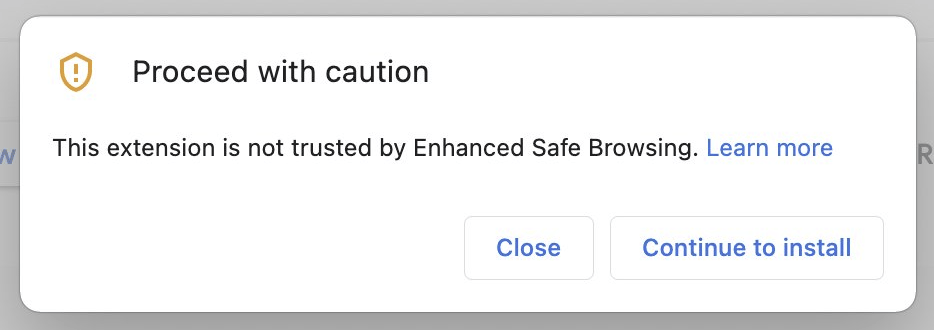
If Enhanced Safe Browsing is enabled, you may see a prompt that the extension isn't yet trusted. Click **Continue to install** to proceed.
### Firefox
1. Visit the [Firefox Add-ons extension page](https://addons.mozilla.org/en-US/firefox/addon/mainwp-browser-extension/)
2. Click **Add to Firefox**
3. Click **Add** to confirm
***
## Connect the Extension to Your Dashboard
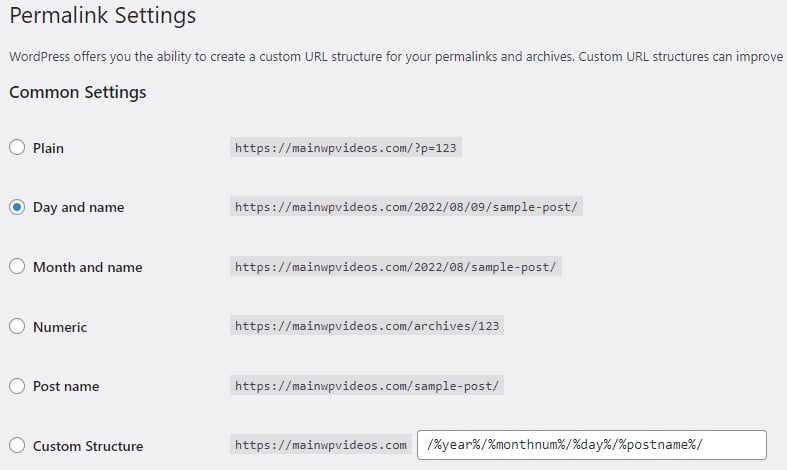
Go to **WP Admin > Settings > Permalinks** on your Dashboard site. Choose any setting except **Plain** (WordPress REST API requirement).
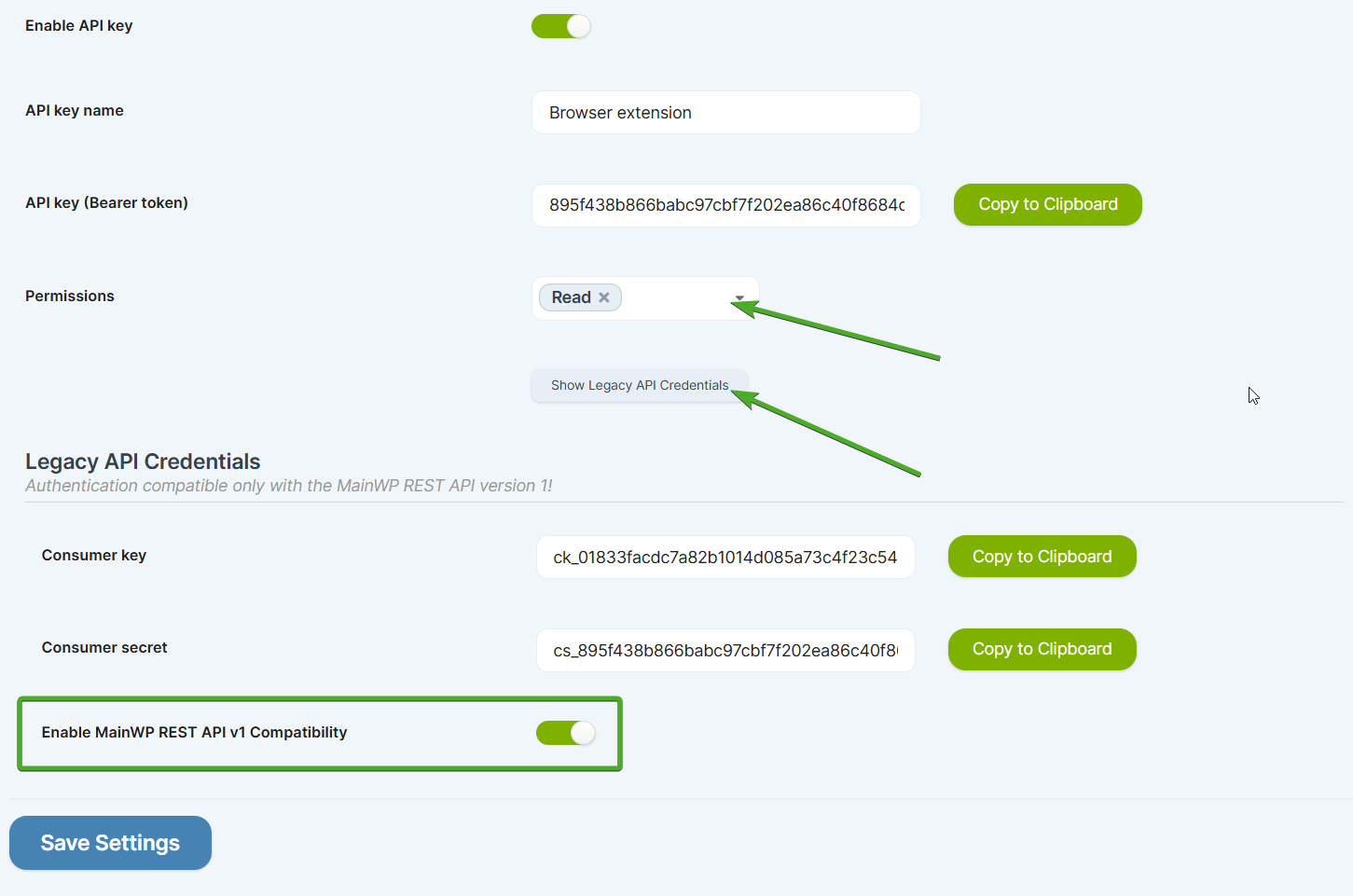
Navigate to **MainWP > API Access > Add API Keys**.
Enter an API key name (for example, "Browser Extension") and select **Read** permission.
Enable **MainWP REST API v1 Compatibility** to display the **Legacy API Credentials** section with your **Consumer Key** and **Consumer Secret**.
Click the extension icon in your browser toolbar.
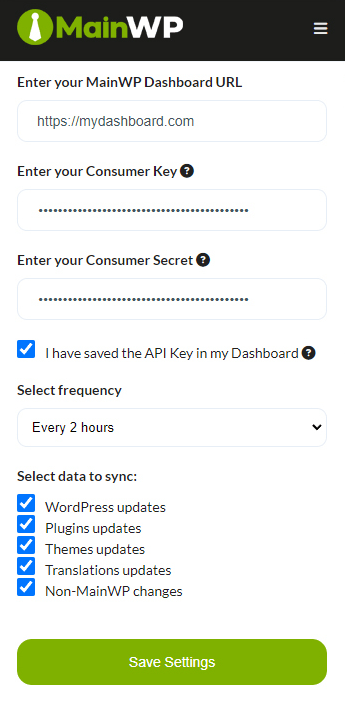
Enter your MainWP Dashboard URL in the extension.
Copy **Consumer Key** and **Consumer Secret** from the **Legacy API Credentials** section and paste them into the extension.
On the **Add API Keys** screen, click **Save API Key** to activate the key.
In the extension popup:
* Check **I have saved the API Key in my Dashboard**
* Select sync frequency
* Choose which data to sync
Click **Save Settings** in the extension.
***
## Push Notifications
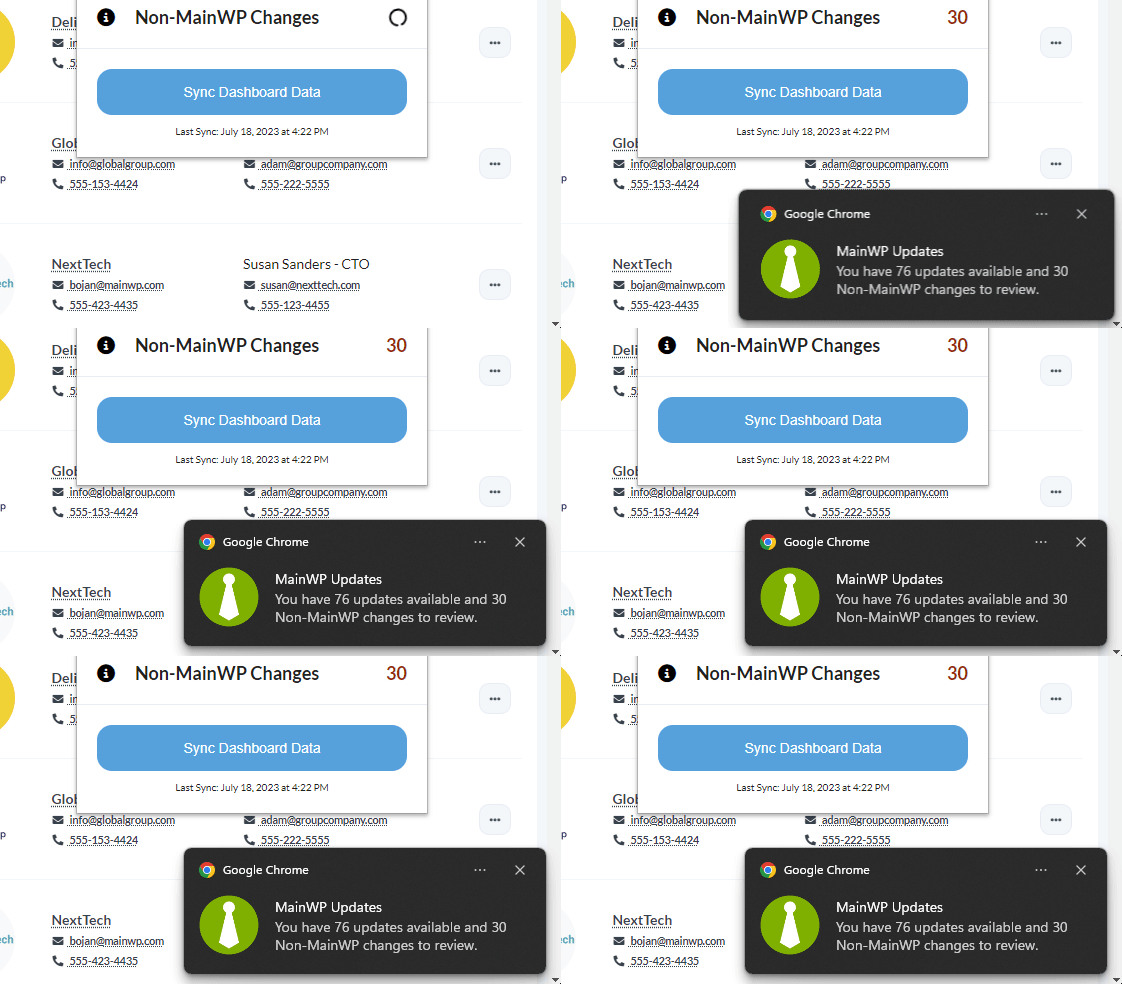
The extension sends browser notifications when it syncs. If you're not receiving notifications, check your operating system settings to ensure browser notifications are enabled.
***
## Troubleshooting
### Connection Issues
| Problem | Solution |
| ------------------------ | ---------------------------------------------------------------- |
| Dashboard not accessible | Ensure Dashboard is on a web host (not localhost) |
| API errors | Set permalinks to something other than "Plain" |
| API key not working | Verify you clicked **Save API Key** after creating the key |
| Credentials rejected | Copy credentials to a text file first, then paste into extension |
### HTTP Basic Auth Conflict
The browser extension is not compatible with HTTP Basic Auth. Use the [Dashboard Lock extension](https://mainwp.com/extension/dashboard-lock/) instead, which provides equivalent protection without interfering with MainWP functionality.
### REST API Blocked
Security or performance plugins may block the REST API. Test by logging out and visiting:
```
https://your-dashboard-url.com/wp-json/
```
If you see an access denied message, find and adjust the blocking plugin's settings.
**Required REST API endpoints:**
* `/mainwp/v1/sites/all-sites`
* `/mainwp/v1/sites/sites-available-updates-count`
* `/mainwp/v1/site/non-mainwp-changes-count`
***
## Permissions and Privacy
The extension requests permissions for alarms, storage, and notifications to store update counts and notify you when you start your browser. The extension does not collect any user data—it only uses your generated REST API keys to connect to your Dashboard.
By installing, you agree to the [Terms of Service](https://mainwp.com/terms-of-service/) and [Privacy Policy](https://mainwp.com/privacy-policy/).
***
## Self-Check Checklist
* [ ] Browser extension installed
* [ ] Permalinks set to non-Plain option
* [ ] REST API key created with Read permission
* [ ] Legacy API v1 compatibility enabled
* [ ] API key saved in Dashboard
* [ ] Extension configured with credentials
* [ ] Updates appearing in extension
***
## Related Resources
* [REST API Overview](/api-reference/rest-api/overview) - API documentation
* [Dashboard Lock Extension](/add-ons/security/dashboard-lock-extension) - Alternative to HTTP Basic Auth
 ***
## Troubleshooting
### Connection Issues
| Problem | Solution |
| ------------------------ | ---------------------------------------------------------------- |
| Dashboard not accessible | Ensure Dashboard is on a web host (not localhost) |
| API errors | Set permalinks to something other than "Plain" |
| API key not working | Verify you clicked **Save API Key** after creating the key |
| Credentials rejected | Copy credentials to a text file first, then paste into extension |
### HTTP Basic Auth Conflict
The browser extension is not compatible with HTTP Basic Auth. Use the [Dashboard Lock extension](https://mainwp.com/extension/dashboard-lock/) instead, which provides equivalent protection without interfering with MainWP functionality.
### REST API Blocked
Security or performance plugins may block the REST API. Test by logging out and visiting:
```
https://your-dashboard-url.com/wp-json/
```
If you see an access denied message, find and adjust the blocking plugin's settings.
**Required REST API endpoints:**
* `/mainwp/v1/sites/all-sites`
* `/mainwp/v1/sites/sites-available-updates-count`
* `/mainwp/v1/site/non-mainwp-changes-count`
***
## Permissions and Privacy
The extension requests permissions for alarms, storage, and notifications to store update counts and notify you when you start your browser. The extension does not collect any user data—it only uses your generated REST API keys to connect to your Dashboard.
By installing, you agree to the [Terms of Service](https://mainwp.com/terms-of-service/) and [Privacy Policy](https://mainwp.com/privacy-policy/).
***
## Self-Check Checklist
* [ ] Browser extension installed
* [ ] Permalinks set to non-Plain option
* [ ] REST API key created with Read permission
* [ ] Legacy API v1 compatibility enabled
* [ ] API key saved in Dashboard
* [ ] Extension configured with credentials
* [ ] Updates appearing in extension
***
## Related Resources
* [REST API Overview](/api-reference/rest-api/overview) - API documentation
* [Dashboard Lock Extension](/add-ons/security/dashboard-lock-extension) - Alternative to HTTP Basic Auth
***
## Troubleshooting
### Connection Issues
| Problem | Solution |
| ------------------------ | ---------------------------------------------------------------- |
| Dashboard not accessible | Ensure Dashboard is on a web host (not localhost) |
| API errors | Set permalinks to something other than "Plain" |
| API key not working | Verify you clicked **Save API Key** after creating the key |
| Credentials rejected | Copy credentials to a text file first, then paste into extension |
### HTTP Basic Auth Conflict
The browser extension is not compatible with HTTP Basic Auth. Use the [Dashboard Lock extension](https://mainwp.com/extension/dashboard-lock/) instead, which provides equivalent protection without interfering with MainWP functionality.
### REST API Blocked
Security or performance plugins may block the REST API. Test by logging out and visiting:
```
https://your-dashboard-url.com/wp-json/
```
If you see an access denied message, find and adjust the blocking plugin's settings.
**Required REST API endpoints:**
* `/mainwp/v1/sites/all-sites`
* `/mainwp/v1/sites/sites-available-updates-count`
* `/mainwp/v1/site/non-mainwp-changes-count`
***
## Permissions and Privacy
The extension requests permissions for alarms, storage, and notifications to store update counts and notify you when you start your browser. The extension does not collect any user data—it only uses your generated REST API keys to connect to your Dashboard.
By installing, you agree to the [Terms of Service](https://mainwp.com/terms-of-service/) and [Privacy Policy](https://mainwp.com/privacy-policy/).
***
## Self-Check Checklist
* [ ] Browser extension installed
* [ ] Permalinks set to non-Plain option
* [ ] REST API key created with Read permission
* [ ] Legacy API v1 compatibility enabled
* [ ] API key saved in Dashboard
* [ ] Extension configured with credentials
* [ ] Updates appearing in extension
***
## Related Resources
* [REST API Overview](/api-reference/rest-api/overview) - API documentation
* [Dashboard Lock Extension](/add-ons/security/dashboard-lock-extension) - Alternative to HTTP Basic Auth