

What You’ll Learn
- Connecting your Patchstack account to MainWP
- Registering and protecting child sites
- Viewing vulnerability and attack data
- Configuring automatic scans and notifications
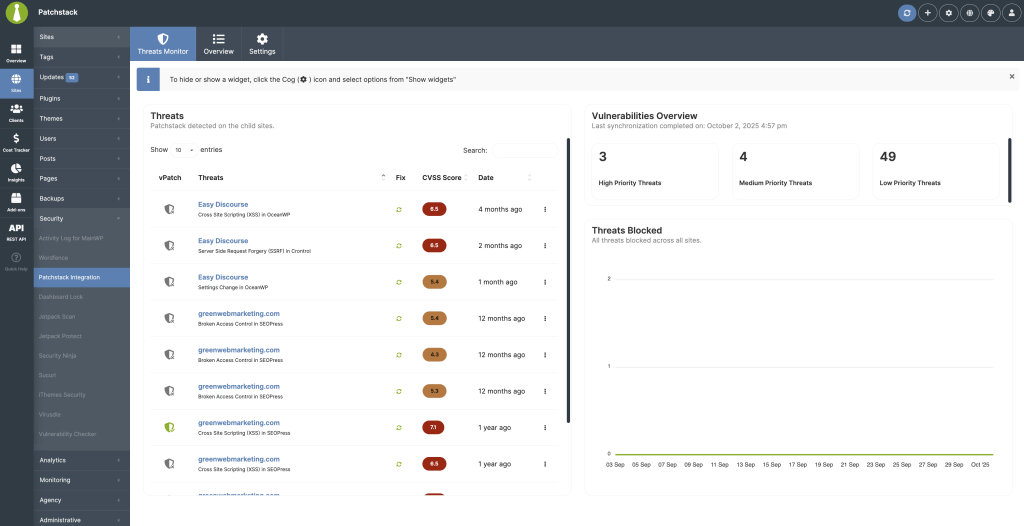
The Patchstack add-on connects your MainWP Dashboard with your Patchstack account. View vulnerability and protection data for all connected child sites without leaving MainWP.
Key features:
- View protection status, vulnerabilities, recent attacks, and available updates
- Track trends with global and per-site widgets (attacks blocked, active threats, firewall logs)
- Include Patchstack stats in MainWP Overview and Client Reports
Requirements
The Patchstack firewall runs on child sites via the Patchstack Security plugin. This add-on manages setup and gathers data in MainWP.
Connect Your Patchstack Account
1
Open settings
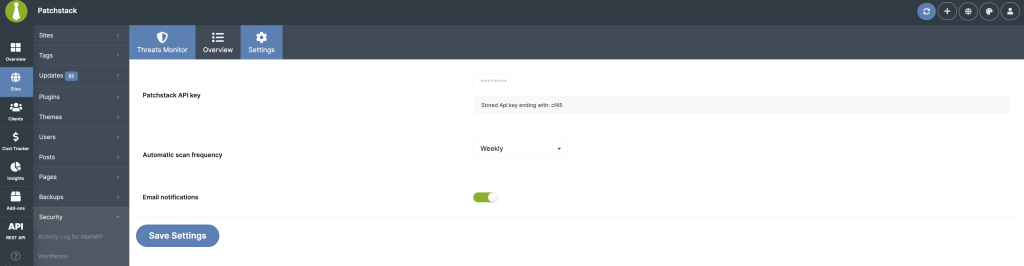
Go to MainWP > Add-ons > Patchstack Integration > Settings.
2
Enter API key
Paste your API key from Patchstack > Settings > Integrations into the Patchstack API key field.
3
Configure scan frequency
Choose Daily, Weekly, Monthly, or Disabled for automatic scans.
4
Enable notifications (optional)
Toggle Email notifications to receive alerts when Patchstack finds new vulnerabilities.
5
Save settings
Click Save Settings. Saving a new key clears previous site bindings, so plan to resync immediately.
Register and Protect Child Sites
1
Open the add sites modal
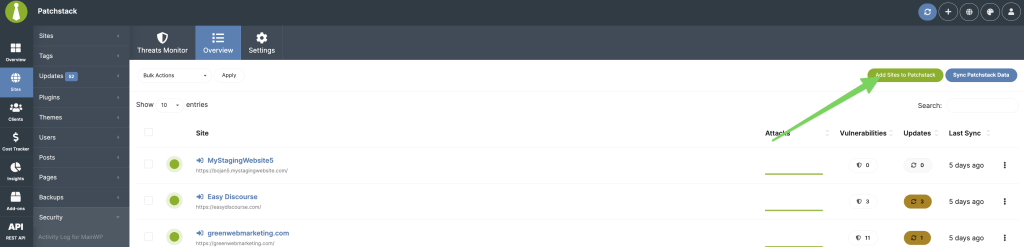
Go to MainWP > Add-ons > Patchstack Integration (Overview tab) and click Add Sites to Patchstack.
2
Select sites
Choose the child sites you want to protect and click Protect With Patchstack.
3
Complete setup
The wizard registers each site with Patchstack, installs and activates the Patchstack plugin, exchanges OAuth tokens, syncs data, and refreshes the dashboard.
4
Verify completion
Close the modal once all rows show a green check. Rerun this flow when you add new child sites.
- Sync Patchstack Data (top-right): Syncs all linked sites
- Sync Data (row ellipsis menu): Syncs individual sites
Where to View Data
Add-on Overview Tab
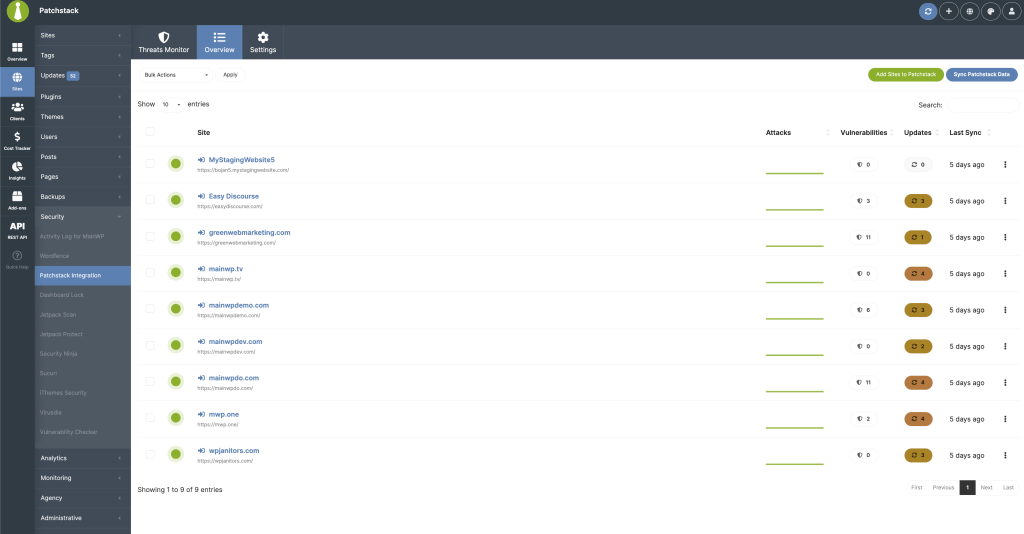
The DataTable lists each protected site with firewall status, 7-day attack sparkline, total vulnerabilities, outdated components, and time since last sync. Row actions: Open site overview/WP Admin, hide or unhide the Patchstack plugin, apply plugin updates, force a data sync, or remove the site. Bulk actions: Update Patchstack plugin, sync data, or remove multiple sites.Add-on Threats Tab
Use the cog icon (screen options) to show/hide widgets or reset layout.
Child Site Overview Widget
Open MainWP > Sites > Manage Sites > > Patchstack for per-site Overview/Threats data, including override controls and focused stats.Main Overview Widget
Enable the Patchstack Security Status widget on the MainWP Overview or individual site dashboards for a compact summary with tabs and quick links.Add-on Settings
Related Resources
- Security Add-ons - Browse all security tools
- Vulnerability Checker Extension - Alternative vulnerability scanning
- Pro Reports Extension - Include Patchstack stats in reports