

What You’ll Learn
- Installing the Database Updater extension
- Detecting database updates for WooCommerce and Elementor
- Updating databases on all sites or individually
- Avoiding the need to access child site wp-admin
Extension Add-on - This add-on provides standalone functionality within MainWP Dashboard. No third-party plugins required.
The Database Updater Extension detects if there are updates to WooCommerce and Elementor plugin databases. This means that you no longer need to access the wp-admin of a Child Site just to click the Update Database button for WooCommerce and Elementor.
Install the Database Updater Extension
1
Go to your MainWP Dashboard
2
Go to the MainWP > Add-ons page
3
Click the Install Add-ons button
Click the Install Add-ons button [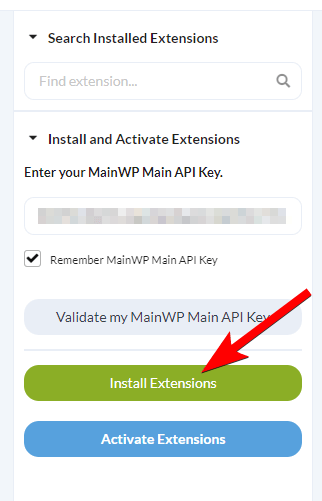
4
Locate the Database Updater extension and select it
5
Click the Install button
6
Once the installation process is complete, click the Activate Add-ons button.
Once the installation process is complete, click the Activate Add-ons button. 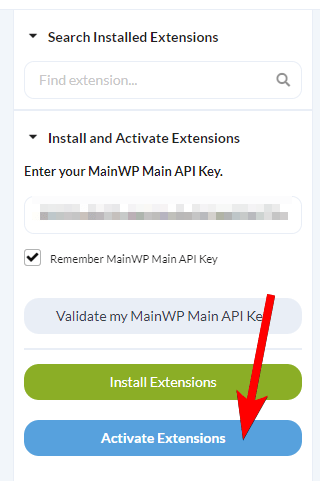
How to Update the Databases
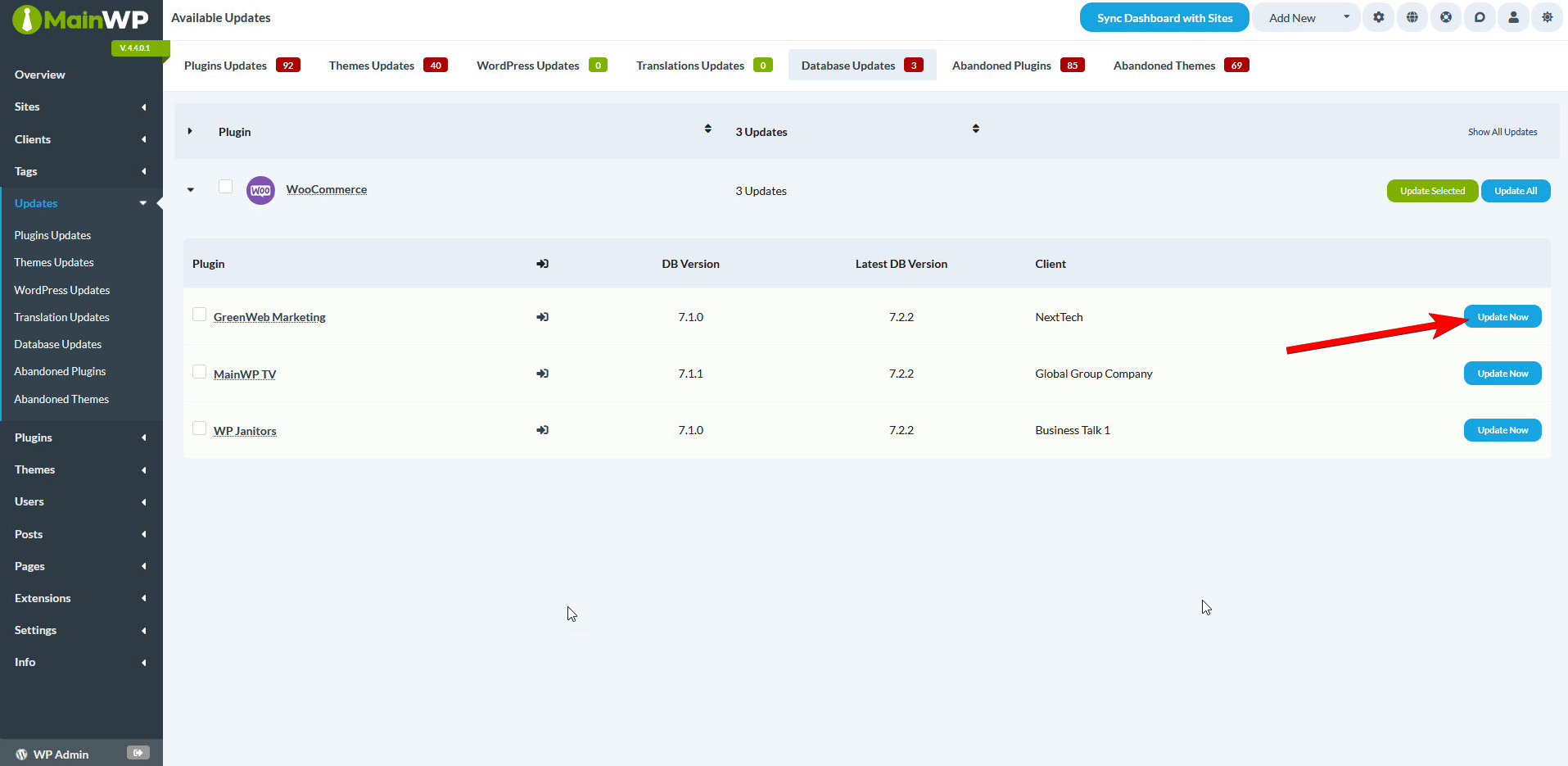
After you’ve installed the extension, a new Database Updates page will appear. The page can be accessed by going to the Dashboard > Updates > Database Updates or Dashboard > Add-ons > Database Updater menu entry.
Update databases on all child sites
1
Go to the MainWP > Updates > Database Updates page.
2
Click the Update All button in the top right

Update databases on individual child sites
1
Go to the MainWP > Updates > Database Updates page.
2
Expand the plugin row and locate the desired site in the table
3
Click the Update Now button next to the desired site
Related Resources
- Updates Add-ons - Browse all update tools
- Manage Updates - Core update management guide
- WooCommerce Status Extension - WooCommerce integration